How to Create and Manage a Digital Field Job Checklist
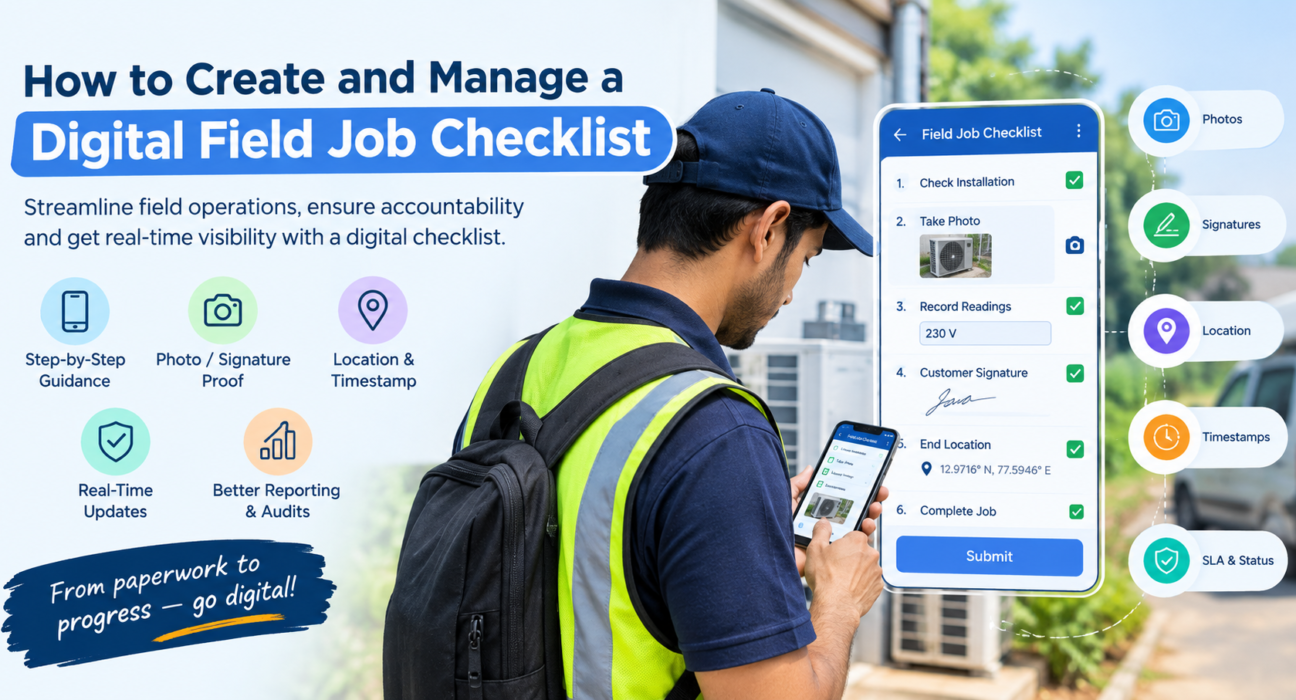
A digital field job checklist is a structured list of steps, checks and data fields that a field employee completes on a mobile app during a job. Each item is timestamped and location-stamped, and can require proof such as a photo, signature or OTP. Managers see the results in real time instead of chasing paper forms at the end of the week.
If your technicians, sales reps or inspectors still work from paper sheets, PDFs or WhatsApp messages, you already know the problem. Steps get skipped, handwriting is unreadable, and nobody can prove what was actually done at the customer’s site.
This guide explains how to build a digital checklist for field work, how to roll it out, and how to manage it over time.
What Is a Digital Field Job Checklist?
A digital field job checklist is a mobile form attached to a task or visit that guides the field employee through every required step. It replaces paper checklists and unstructured chat messages.
A good one usually includes:
- Task steps: the ordered actions the employee must complete.
- Data fields: readings, notes, dropdown choices, yes/no checks.
- Proof capture: photos, signatures or OTP confirmation.
- Status and timing: when the job started, when it closed, and whether it met its SLA.
- Location context: where the employee was when the checklist was filled.
Because the data is captured in a structured way, it can be searched, reported on and audited later.
Why Paper and WhatsApp Checklists Fall Short
Paper works until the team grows. Then the cracks show.
- No real-time visibility. A manager only learns about a missed step after the job is closed, or after the customer complains.
- Inconsistent execution. Each employee follows their own version of the process.
- No reliable proof. A ticked box on paper proves nothing about whether the work happened.
- Data entry duplication. Someone in the office has to retype paper forms into a spreadsheet.
- Lost or damaged records. Forms get misplaced, wet or forgotten in a vehicle.
A digital checklist addresses each of these by making the process consistent, time-stamped and visible.
Benefits of Digital Checklists for Field Teams
Consistency. Every employee follows the same steps in the same order, whatever their experience level.
Accountability. Required fields and proof capture mean a job can’t be marked complete with steps missing.
Faster reporting. Data is captured once, at the source, and available to managers immediately.
Better coaching. When you can see where steps are skipped or jobs run long, you can train on specific gaps instead of guessing.
Audit readiness. Digital records with timestamps are far easier to retrieve than filing cabinets of paper.
How to Create a Digital Field Job Checklist (Step by Step)
Follow these steps to build a checklist that field teams will actually use.
- Choose one job type to start. Pick a high-volume or high-risk job, such as a service call, site inspection or customer visit.
- Document the current process. Shadow a good field employee and write down what they actually do, not what the manual says.
- Break the job into clear steps. Use short, action-based items (“Photograph the installed unit”) instead of vague ones (“Check installation”).
- Decide what needs proof. Mark the steps where a photo, signature or OTP is essential.
- Add the right input types. Use checkboxes for yes/no, dropdowns for fixed choices, numeric fields for readings and text fields only where needed.
- Set mandatory versus optional items. Make critical safety and quality steps required so a job cannot close without them.
- Attach timing rules. Link the checklist to a priority level and SLA so overdue jobs are visible.
- Test with a small group. Run it with a few field employees for a week and note where they get stuck.
- Refine, then roll out. Trim unnecessary fields, fix confusing wording, then release to the wider team.
Keep Checklists Short and Usable
Field employees work on phones, often outdoors and under time pressure. A 60-item checklist gets rushed or ignored.
- Aim for the minimum number of steps that protects quality.
- Group related items into sections.
- Put the most important items early.
- Avoid asking for information you already have in the system.
Design for Poor Connectivity
Many field locations, such as basements, rural sites and warehouses, have weak or no network. Choose a tool that lets employees complete the checklist offline and syncs automatically once they reconnect.
Digital Checklist Examples by Field Job Type
Here are examples of what a checklist might include for common field jobs. Adapt them to your own processes.
| Job Type | Sample Checklist Items | Proof to Capture |
|---|---|---|
| Service / repair visit | Confirm customer identity, diagnose issue, complete repair, test equipment, explain work done | Before/after photos, customer signature |
| Site inspection | Check safety points, record readings, note defects, flag follow-ups | Geo-tagged photos, notes |
| Retail or merchandising audit | Verify shelf display, check stock availability, record competitor presence | Shelf photos |
| Sales or customer visit | Meet the decision-maker, record discussion, capture order or feedback, set next step | Visit check-in, notes |
| Collection visit | Verify customer, record amount received, issue receipt | Receipt photo, OTP or signature |
| Facility or security round | Visit each checkpoint, log observations, report issues | Location-verified check-ins |
How to Manage Digital Checklists After Launch
Creating the checklist is only half the work. The value comes from managing it.
Assign Checklists to the Right Jobs
Link each checklist to a specific job or visit type so employees get the right one automatically, without choosing from a long list.
Monitor Completion in Real Time
Track which jobs are open, in progress or complete. Look for jobs that are overdue or closed with unusually short durations, which may signal skipped steps.
Review and Improve Regularly
Every quarter, review your checklists:
- Which items are frequently skipped or left blank?
- Which items never trigger a problem and could be removed?
- Are there new failure points that need a new check?
Use the Data for Coaching, Not Just Control
Checklist data shows where employees struggle. Use it to run targeted training instead of using it only to police the team.
Keep an Audit Trail
Retain completed checklists with timestamps, proof and location details. If a customer disputes a job or an auditor asks for evidence, you can retrieve the record quickly.
What to Look for in Digital Checklist Software
If you’re comparing tools, use this list as a starting point.
- Custom forms: you should be able to build checklists to match your own process without writing code.
- Proof capture: photo, signature and OTP support.
- Offline mode: full functionality without a network.
- Task and SLA linking: checklists tied to jobs, priorities and deadlines.
- Location verification: proof that the work was done at the right place.
- Real-time dashboards and reports: visibility for managers without manual compilation.
- Ease of use: simple enough that field staff need minimal training.
How FieldExecutives Supports Digital Field Job Checklists
Businesses looking to simplify these processes can use field force management software such as FieldExecutives, which brings checklists, tasks, proof capture and tracking into one platform.
Based on the platform’s published features, teams can:
- Build custom forms and checklists using a drag-and-drop form builder, and set their own job types, approvals and SLAs.
- Assign tasks and visits with checklists so the right employee receives the job on their phone.
- Capture proof through photos, signatures and OTP before a job can close.
- Work offline, with data syncing once the employee reconnects.
- Use a guided job card that shows where to go, whom to meet and what to complete.
- Monitor progress through SLA timers, a live team view and real-time KPIs and reports.
This means the checklist is not a standalone form. It sits inside the same workflow as assignment, attendance, visits and reporting, so managers get one view of what happened in the field.
Best Practices for Rolling Out Digital Checklists
- Involve field employees early. They know where the real problems are, and they are more likely to use a tool they helped shape.
- Start small. Launch one checklist for one job type, prove it works, then expand.
- Explain the “why.” Tell the team the goal is fewer callbacks and disputes, not more surveillance.
- Train on the phone, not in a meeting room. Let employees complete a practice job.
- Set clear ownership. Decide who updates checklists, who reviews the data and how often.
- Measure results. Track metrics such as jobs closed with complete checklists, repeat visits, SLA compliance and customer complaints before and after rollout.
Conclusion
A well-built digital field job checklist turns field work from something you hope went well into something you can verify. It standardizes how jobs are done, captures proof at the source and gives managers real-time visibility. That helps teams cut errors, resolve disputes faster and coach with real data.
Start with one job type, keep the checklist short, require proof where it matters and review the results regularly. If you want checklists, tasks, proof capture and field tracking in one system, FieldExecutives is worth evaluating.